

Task Orchestrator Showdown: Which AI Skill Automates Your Work Best?
Every professional spends hours on repetitive tasks—filling forms, copying data between apps, clicking through websites, or managing desktop workflows. The promise of AI task orchestration is simple: hand those routines to an agent and focus on work that matters. But with multiple automation skills available, choosing the right one for your specific task can be the difference between a smooth workflow and a frustrating setup.
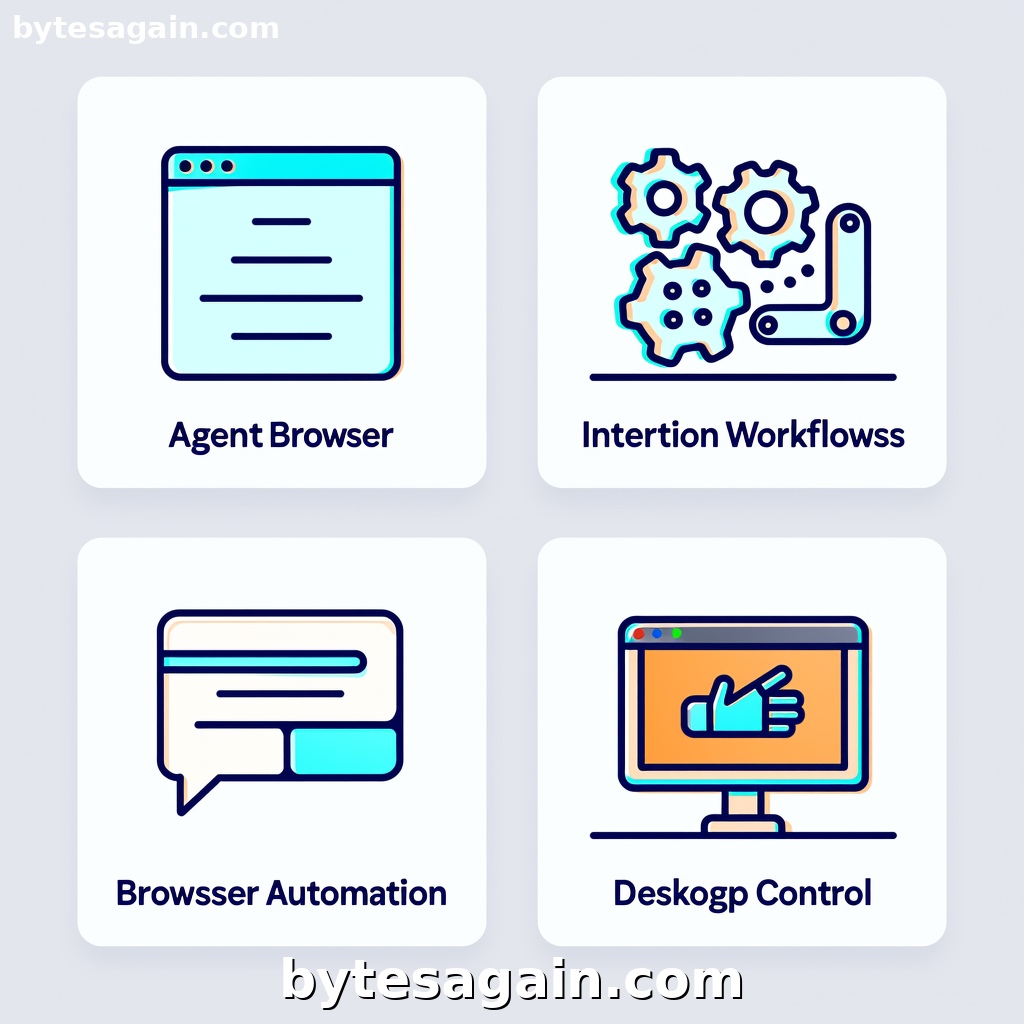
This article compares four AI skills designed for the Task Orchestrator use case: Agent Browser, Automation Workflows, Browser Automation, and Desktop Control. Each skill approaches automation differently, and understanding their strengths will help you build the right agent for your needs.
The Four Skills at a Glance
Agent Browser (agent-browser-clawdbot) is a headless browser automation CLI built specifically for AI agents. It uses accessibility tree snapshots and reference-based element selection, meaning the agent "sees" a page the way assistive technology does—structured, semantic, and reliable. This skill shines when you need precise, repeatable interactions with modern web applications.
Automation Workflows (automation-workflows) focuses on designing and implementing multi-step automation sequences. It is built for solopreneurs and small teams who want to connect tools, set up triggers, and scale operations without writing code. Think of it as the strategic layer—identifying what to automate and how the pieces fit together.
Browser Automation (browser-automation) offers web browser control through natural language CLI commands. You tell the agent what to do—"navigate to this page," "extract these prices," "fill this form"—and it executes. It is more flexible than Agent Browser but less structured, making it ideal for ad-hoc browsing tasks.
Desktop Control (desktop-control) extends automation beyond the browser. It controls mouse movements, keyboard inputs, and screen interactions. This skill is essential when your workflow involves desktop applications, legacy software, or any task that requires manipulating the operating system directly.
Side-by-Side Comparison
Where each skill operates:
- Agent Browser and Browser Automation are confined to web browsers. Agent Browser runs headlessly (no visible window), while Browser Automation can work with visible browser instances.
- Automation Workflows is platform-agnostic—it orchestrates actions across web, desktop, and API tools.
- Desktop Control operates at the operating system level, controlling any application that accepts mouse and keyboard input.
How they interact with elements:
- Agent Browser uses accessibility tree snapshots and reference-based selection. This means it identifies elements by their semantic role and label, not by screen coordinates or fragile CSS selectors. It is more reliable for complex single-page applications.
- Browser Automation uses natural language instructions. The agent interprets your command and figures out the DOM interactions. This is simpler but can be less precise for deeply nested interfaces.
- Desktop Control uses screen coordinates, image recognition, or UI automation frameworks. It works when no API or web interface exists.
Best-fit use cases:
- Agent Browser excels at data extraction from dynamic web apps, automated testing, and repetitive form submissions where reliability matters.
- Automation Workflows is best for connecting multiple services—for example, "when an email arrives, create a task in my project manager, then send a Slack notification."
- Browser Automation handles quick browsing tasks, scraping public data, or automating login sequences where you need flexibility.
- Desktop Control is your tool for automating legacy desktop software, performing system configuration, or controlling applications that lack any API.
Complexity and setup:
- Agent Browser requires understanding of accessibility concepts but offers high reliability once configured.
- Automation Workflows demands upfront planning—you need to map your process before building.
- Browser Automation is the easiest to start with—just describe what you want.
- Desktop Control requires careful setup to avoid breaking when screen layouts change.
Real-World Scenario: A Day in the Life of a Solopreneur
Meet Elena. She runs an e-commerce business selling handmade ceramics. Her morning routine involves three repetitive tasks: checking competitor pricing on a marketplace website, updating her inventory spreadsheet in a desktop accounting app, and sending order confirmation emails through her CRM.
Task 1: Check competitor pricing Elena needs to visit three product pages, extract current prices, and log them. Using Agent Browser, she creates a skill that navigates to each URL, captures the accessibility tree snapshot, and extracts the price element by its semantic label. The headless browser runs in the background without opening windows. Because Agent Browser uses ref-based selection, the skill works reliably even when the website updates its layout.
Task 2: Update inventory spreadsheet Her accounting software is a desktop application with no API. Desktop Control handles this by automating mouse clicks and keyboard inputs. The agent opens the app, clicks the inventory tab, selects the correct cell, and enters updated stock counts. This requires precise screen coordinates, which Elena saves as part of her workflow.
Task 3: Send order confirmations Her CRM is web-based. Automation Workflows ties everything together: it triggers when a new order arrives, calls Browser Automation to log into the CRM, fills the confirmation template, and sends the email. The workflow also updates a Google Sheet with the order status.
Which skill for which part?
- Agent Browser for reliable, repeatable web data extraction.
- Desktop Control for legacy desktop software.
- Automation Workflows as the orchestrator connecting all steps.
- Browser Automation for the quick, one-off CRM interaction.
Recommendations by User Type
For the solopreneur or small business owner: Start with Automation Workflows. It helps you think systematically about what to automate and provides the framework to connect different tools. Add Browser Automation for simple web tasks and Desktop Control only when you absolutely need to interact with desktop software.
For the developer or QA engineer: Agent Browser is your primary tool. Its accessibility-based approach produces more reliable test automation and data extraction scripts. Pair it with Automation Workflows to build test suites that run across different environments.
For the power user who wants maximum flexibility: Combine Browser Automation for web tasks with Desktop Control for everything else. This combination covers nearly any automation scenario, though it requires more manual configuration for reliability.
For the non-technical professional: Browser Automation offers the gentlest learning curve. Describe your task in natural language, and the agent handles the rest. As your needs grow, graduate to Automation Workflows to manage multi-step processes.
Actionable advice: Before choosing a skill, map your task from start to finish. Identify whether each step happens in a browser, a desktop app, or across multiple services. Then match the skill to the environment. A task that lives entirely in a modern web app is best served by Agent Browser. A task spanning web, desktop, and APIs demands Automation Workflows as the backbone.
Final Verdict
No single skill dominates every scenario. Agent Browser wins for reliability in web automation. Automation Workflows excels at connecting disparate tools into a coherent process. Browser Automation offers the fastest path to getting started. Desktop Control fills the gaps when no other tool reaches.
For most task orchestration needs, build a stack: use Automation Workflows as your conductor, Agent Browser for heavy web lifting, and Desktop Control for the desktop tasks that can't be avoided. This combination gives you reliability where it matters and flexibility where you need it.
Explore the Task Orchestrator use case to see how these skills work together in practice, or visit individual skill pages to get started:
Find more AI agent skills at BytesAgain.
Published by BytesAgain · May 2026